Authentication: Announcing 2FA, MFA and Passkeys on Koyeb
Today, we are excited to announce a new and improved authentication experience for all Koyeb users, bringing stronger security and smoother access to your Koyeb accounts.
When we first built Koyeb, we used an internal authentication system that was simple, easy to maintain, and served us well. As the platform grew and matured, we knew we had to redesign our authentication stack to meet the security needs of the teams using us.
To support more advanced features and offer a smoother sign-in experience, we’ve introduced a fully redesigned authentication system with robust security features, including 2FA, MFA (Multi-Factor Authentication), and passkeys. Learn more about these new features and how to get started using them below.
2FA and Multi-Factor Authentication
2FA and MFA add extra layers of security to your Koyeb accounts by requiring more than one step to verify your identity. Starting today, you can secure your Koyeb account with a second verification step using any standard authenticator app. Enabling 2FA and MFA significantly reduces the risk of account compromise and is the fastest way to strengthen the security of your account.
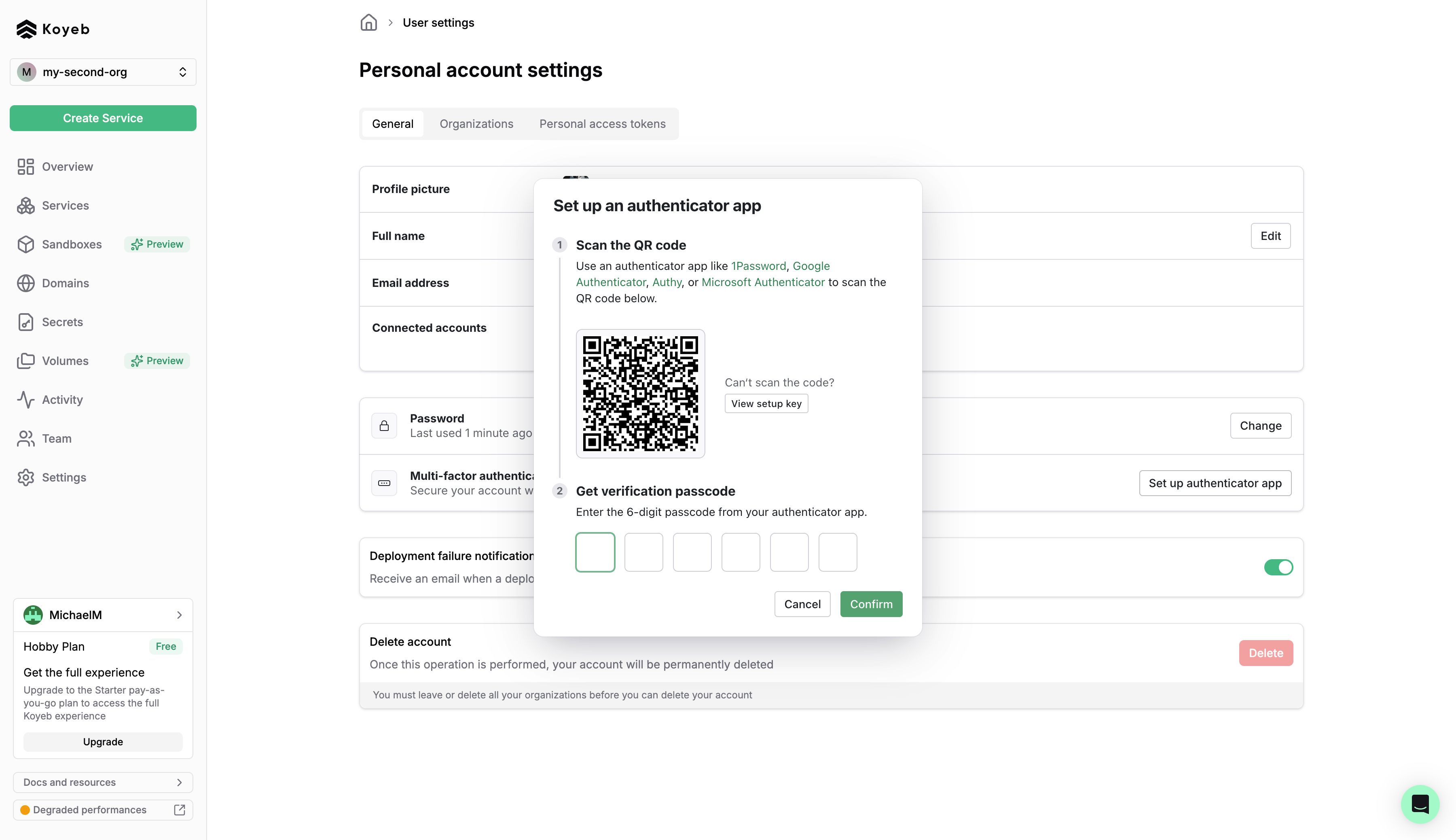
How to Enable 2FA and MFA
To enable MFA, visit your account settings page and scroll to the Multi-Factor Authentication section. From there, you can set up an authenticator app in just a few steps: verify your identity, scan the QR code, and confirm the code from your app.
If you need a detailed walkthrough, you can follow the full step-by-step guide in our MFA documentation.
Passkeys
Koyeb now supports passkeys, allowing you to sign in to your Koyeb account without a password. A passkey is a secure, encrypted digital key stored in your password manager, providing a more secure and faster way to authenticate your identity.
Passkeys rely on built-in device security - such as fingerprint scanners, facial recognition, or hardware keys like Yubikeys - to provide a fast, phishing-resistant, and seamless sign-in experience across devices.
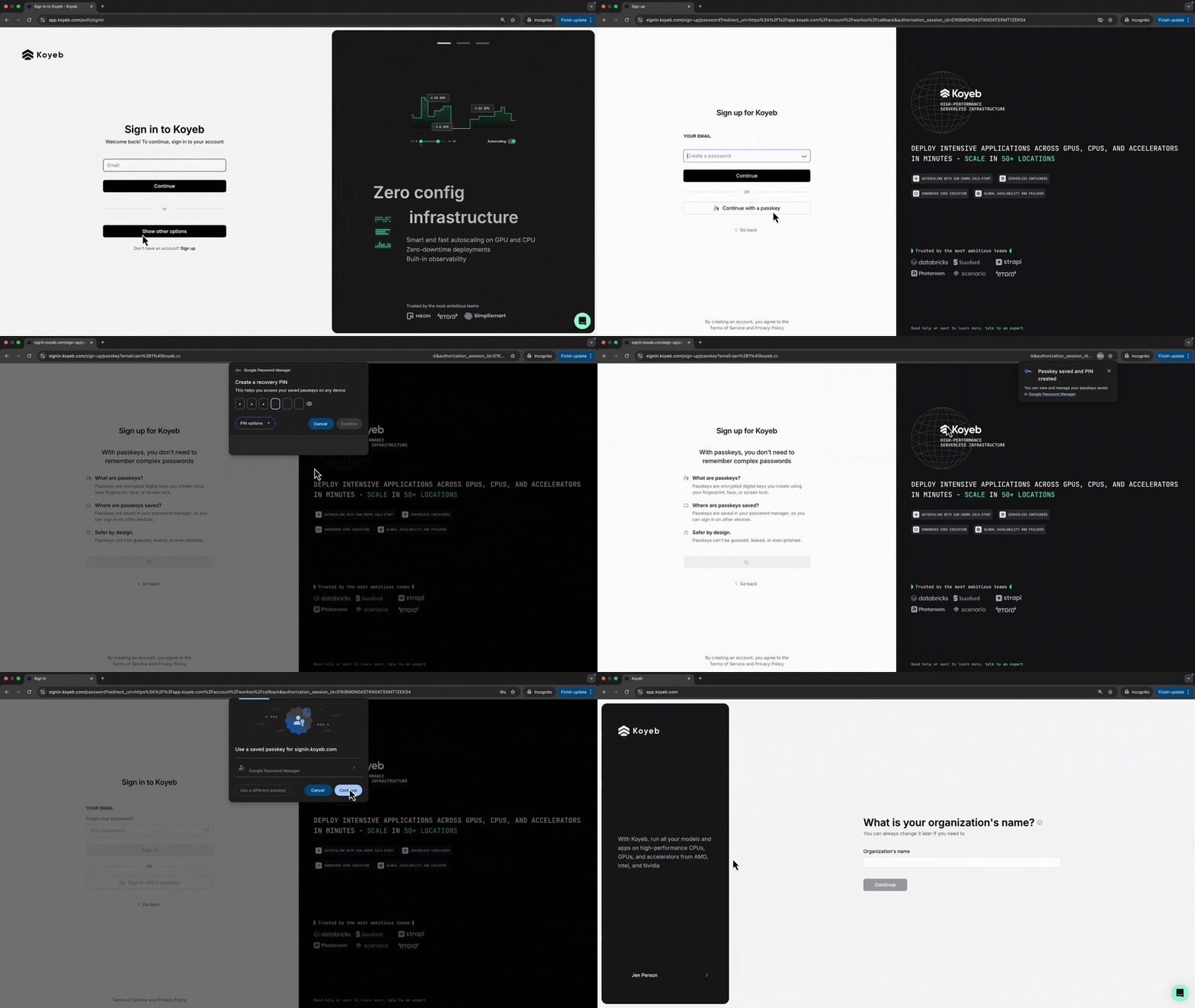
How to Set Up Passkeys
To sign up for Koyeb and log in using a passkey, simply select "Continue with passkey" on the Koyeb login page. Follow the prompts to create and store your passkey securely in your password manager. After it's created, your account will be set up and you will receive a confirmation that your passkey is ready to use.
To log in to an existing Koyeb account using a passkey, enter your email address and select "Sign in with passkey" and select the passkey when prompted by your password manager.
Leverage Koyeb's serverless platform and high-performance infrastructure to execute AI-generated code, run AI agents, fine-tune models, and more.
Coming Next: Google Social Login
This authentication revamp is just the beginning. Our goal is to provide you with the security tools you and your team need to deploy your production-grade applications on Koyeb.
Next up, we’re working on supporting Google as an authentication method. Google login will also make it easy to sign in to Koyeb using your existing Google account.
We can’t wait to bring these improvements to your workflows. Stay tuned for these updates and more.
- Sign up for Koyeb
- Read the documentation for more details on setting up 2FA, MFA, and passkeys.